
In short
A chat screen looks easy until you build one. Auto-scrolling, timestamps, sending states and long messages each hide a small React lesson.
A messaging interface — message list, input box, and optionally real-time updates — great practice for list rendering, auto-scroll and controlled inputs.
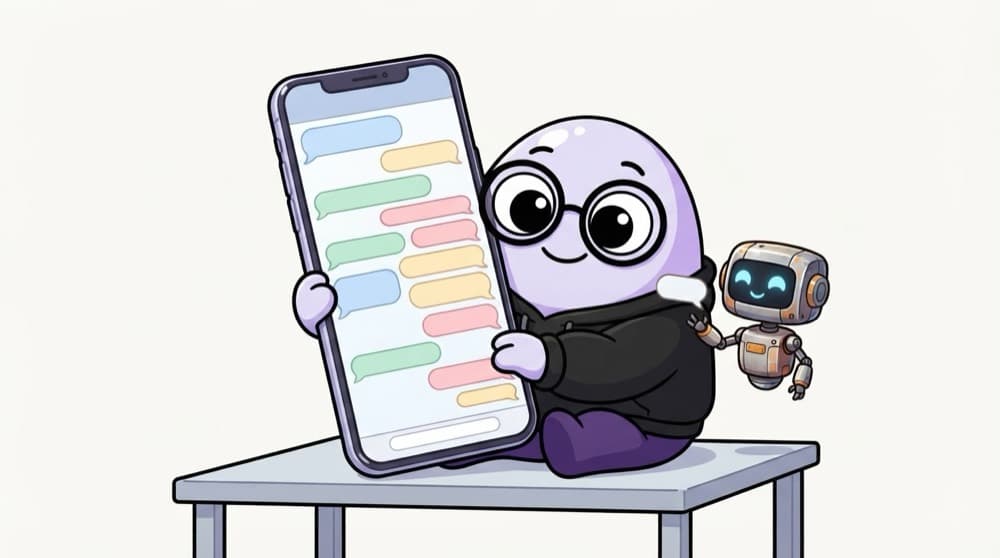
Think of it like this
The front of a WhatsApp group
You're not building WhatsApp's servers, just the part people see: bubbles on the left and right, a box at the bottom, and the screen jumping to the newest message. Fake the other side with a bot that replies after a second.
Watch it happen
Send, reply, scroll
"hi" + Enter
1/6You type hi and press Enter.
The big ideas
What you need to know
Bubbles by sender
Put your messages on the right and others on the left, based on a sender field.
Auto-scroll to newest
Put a ref after the last message and scroll it into view whenever messages change.
Sending states
Show a message instantly as 'sending', then mark it 'sent', like the single and double tick.
Keyboard friendly
Enter sends, Shift+Enter adds a new line, and the box keeps focus after sending.
How it works
Build plan
- 1
Static layout
A header, a scrolling message list and an input fixed at the bottom.
- 2
Send messages
Add typed messages to a messages array in state.
- 3
Fake replies
A setTimeout bot replies a second later.
- 4
Scroll and polish
Scroll to the latest message and add times and ticks.
See it in code
Walk through the code
1import { useEffect, useRef } from "react";2 3type Msg = { id: string; text: string; mine: boolean };4 5export function MessageList({ messages }: { messages: Msg[] }) {6 const endRef = useRef<HTMLDivElement>(null);7 useEffect(() => {8 endRef.current?.scrollIntoView({ behavior: "smooth" });9 }, [messages]);10 return (11 <div className="messages">12 {messages.map((m) => <p key={m.id} className={m.mine ? "me" : "them"}>{m.text}</p>)}13 <div ref={endRef} />14 </div>15 );16}1/4endRef will point at an empty div after the last bubble.
The empty div sits after the last bubble. Every time messages changes, the effect scrolls it into view, so the newest message is always visible.
Save yourself the pain
Common mistakes
Oops
Running the scroll effect with no dependency array.
Do this instead
Pass [messages] so it scrolls only when messages change, not on every render caused by typing.
Oops
Letting the whole page scroll instead of the message list.
Do this instead
Give the list a fixed height with overflow-y: auto, and keep the header and input outside it.
Your mission
First milestone: talk to a bot
Quick check
Why does the auto-scroll effect list [messages] as its dependency?
Go deeper
- 1Auto-scroll to the latest message when a new one arrives.
- 2Build the message list with proper `key` usage for performance.
- 3Add optimistic UI — show the sent message immediately, before server confirmation.
More projects at this stop
 Ecommerce
 Notes App
 Dashboard
 Blog
 Admin Panel

Stuck on this topic? Ask an Insider
Get 1:1 guidance from people who've walked this exact path — on the InsideEdge app.
