In short
You don't need to install and babysit a database on your laptop. MongoDB Atlas gives you a free cloud cluster in a few minutes, and the same connection string works from your laptop and your deployed API.
MongoDB Atlas is the hosted cloud version of MongoDB with a free tier. You create a cluster, add a database user, allow your IP address and copy a connection string into your .env file.
Think of it like this
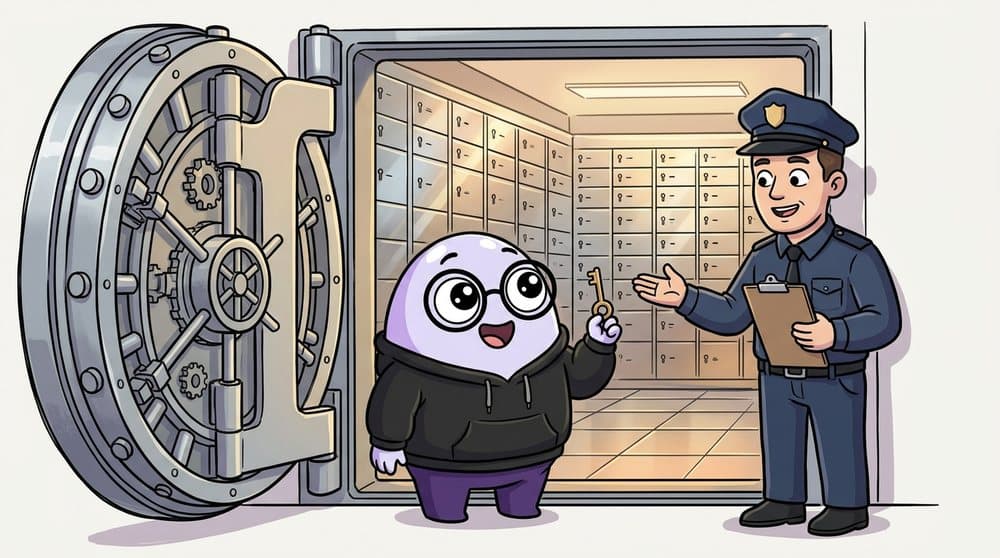
Renting a bank locker
Instead of building a safe at home, you rent a locker at the bank. You choose the branch (region), get your name on the register (database user), the guard only lets in people on the approved list (IP access list) and you get a key (connection string). Lose the key, and anyone can open your locker.
Watch it happen
From sign-up to connected
1/5Create a free cluster and pick a nearby region, such as Mumbai, for lower latency.
The big ideas
What you need to know
Free tier cluster
The free M0 cluster is enough for learning and portfolio projects. It is a replica set, so transactions work too.
Two kinds of login
Your Atlas account manages the project. A separate database user, with its own password, is what your app connects as.
IP access list
Atlas blocks every IP by default. Add your own IP, and later your hosting provider's addresses.
Keep the URI secret
The connection string contains the password. Store it in .env, never in code or GitHub.
See it in code
Walk through the code
1# .env (never commit this file)2MONGODB_URI="mongodb+srv://shop_app:YOUR_PASSWORD@cluster0.abcde.mongodb.net/shopdb?retryWrites=true&w=majority"3 4# Test the connection from your terminal5mongosh "$MONGODB_URI"6 7# Inside mongosh8db.getName() // shopdb9db.ping.insertOne({ ok: true })10show collections1/3shop_app is the database user. shopdb after the host is the default database for this connection.
Your connection string, stored in .env and tested with mongosh before you write any app code.
Save yourself the pain
Common mistakes
Oops
Using your Atlas account email and password in the connection string.
Do this instead
Create a database user under Database Access and use that username and password.
Oops
Leaving the password with special characters like @ or # unencoded.
Do this instead
Percent-encode special characters in the URI, or choose a password made of letters and numbers.
Oops
Allowing access from 0.0.0.0/0 and forgetting about it.
Do this instead
Prefer specific IPs. If you open it up for a demo, use a strong password and tighten it afterwards.
Your mission
Your first cloud database
Quick check
Your app gets an authentication error when connecting to Atlas. What should you check first?
Go deeper
- 1Create a free Atlas cluster in a region close to India, such as Mumbai.
- 2Create a database user with a strong password and store the connection string in .env.
- 3Load the sample dataset so you have real data to practise queries on.
More topics at this stop
 NoSQL vs SQL
 Documents and Collections
 mongosh and MongoDB Compass
 CRUD Operations in MongoDB
 Query Operators
 Projection, Sort and Limit
 Update Operators
 Indexing in MongoDB

Stuck on this topic? Ask an Insider
Get 1:1 guidance from people who've walked this exact path — on the InsideEdge app.
