
Connecting to EC2 (SSH, Instance Connect, Session Manager)
Part of the AWS Roadmap
In short
There are three ways into an EC2 instance, and the one most tutorials teach first, SSH with port 22 open, is the one security teams like least. Learn all three and know when each fits.
You can reach an instance with SSH and a key pair, with EC2 Instance Connect from the browser, or with Systems Manager Session Manager, which needs no open inbound port or key and logs every session.
Think of it like this
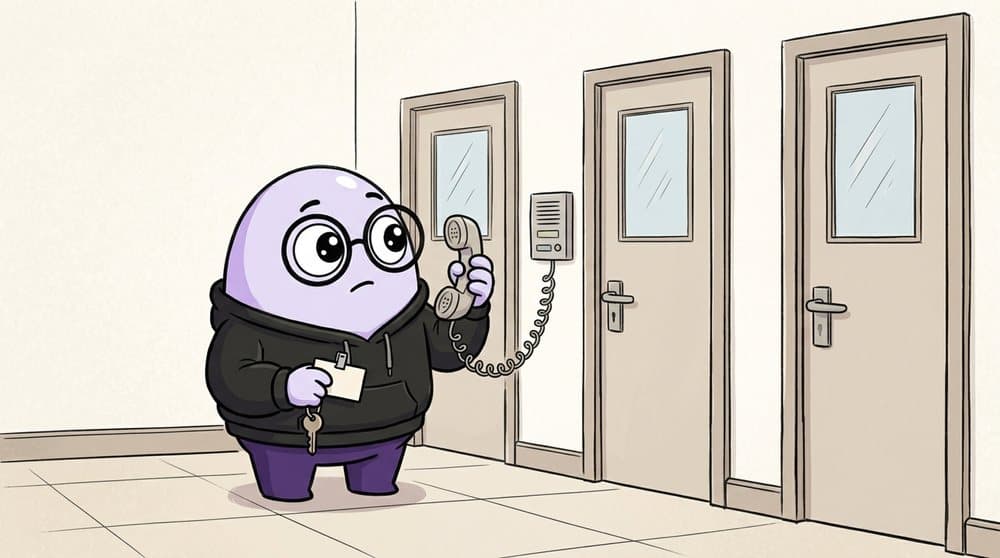
Three ways into an office
You can carry your own door key (SSH key pair), get a one-time visitor pass at reception (Instance Connect pushes a short-lived key), or ask the building's intercom to connect you to the room with no outside door at all (Session Manager).
Watch it happen
SSH key vs Session Manager
SSH with a key pair
- Needs port 22 open in the security group
- Needs a public IP or a bastion host
- You must protect and share the .pem file
- Works with any SSH tool, scp and VS Code Remote
Session Manager
- No inbound ports, no keys, no public IP needed
- Access controlled by IAM policies
- Sessions can be logged to CloudWatch Logs or S3
- Needs the SSM Agent and an instance role
Use Session Manager for day-to-day admin on servers. EC2 Instance Connect is handy for quick SSH without managing permanent keys.
The big ideas
What you need to know
Key file permissions
SSH refuses a key that others can read. Run chmod 400 on the .pem file first.
Right username
ec2-user on Amazon Linux, ubuntu on Ubuntu. The wrong name gives 'Permission denied (publickey)'.
Instance Connect
Pushes a temporary public key valid for 60 seconds. Works from the console or with aws ec2-instance-connect ssh.
Session Manager setup
Attach a role with AmazonSSMManagedInstanceCore. Amazon Linux 2023 already has the SSM Agent.
See it in code
Walk through the code
1# 1. Classic SSH with a key pair2chmod 400 riya-mumbai.pem3ssh -i riya-mumbai.pem ec2-user@13.233.10.204 5# 2. EC2 Instance Connect from the AWS CLI (no saved key needed)6aws ec2-instance-connect ssh --instance-id i-0123456789abcdef07 8# 3. Session Manager (needs the Session Manager plugin installed locally)9aws ssm start-session --target i-0123456789abcdef01/3Lock down the key file, then connect as ec2-user to the public IP.
The same instance reached three ways. Option 3 works even with no inbound rules and no public IP.
Save yourself the pain
Common mistakes
Oops
Losing the .pem file and thinking the instance is gone forever.
Do this instead
Use Session Manager or Instance Connect to get in, then add a new public key to ~/.ssh/authorized_keys.
Oops
Session Manager shows the instance as offline and you open port 22 instead.
Do this instead
Check the instance role has AmazonSSMManagedInstanceCore and that it can reach the SSM endpoints through the internet, a NAT gateway or VPC endpoints.
Your mission
Three doors, one server
Quick check
Which connection method needs no inbound security group rule at all?
Go deeper
- 1Connect to the same instance once with SSH and once with Session Manager.
- 2Attach the AmazonSSMManagedInstanceCore policy to the instance role so Session Manager works.
- 3Close port 22 in the security group and confirm Session Manager still connects.
More topics at this stop
 What Is Amazon EC2
 Launching an EC2 Instance
 EC2 Instance Types & Families
 Amazon Machine Images (AMIs)
 EC2 User Data & Bootstrapping
 Security Groups for EC2
 EC2 Instance Metadata & IMDSv2
 EC2 Pricing: On-Demand, Reserved, Spot & Savings Plans

Stuck on this topic? Ask an Insider
Get 1:1 guidance from people who've walked this exact path — on the InsideEdge app.
