Row-Level Security (RLS)
Part of the Power BI Roadmap
In short
The North zone manager should see North numbers, and nothing else. Row-level security lets one report and one model serve everyone, while each person only sees the rows they are allowed to.
RLS restricts which rows each user sees, using roles with DAX filters defined in Desktop and users assigned to roles in the Service. It applies to Viewers, not to workspace Admins, Members or Contributors.
Think of it like this
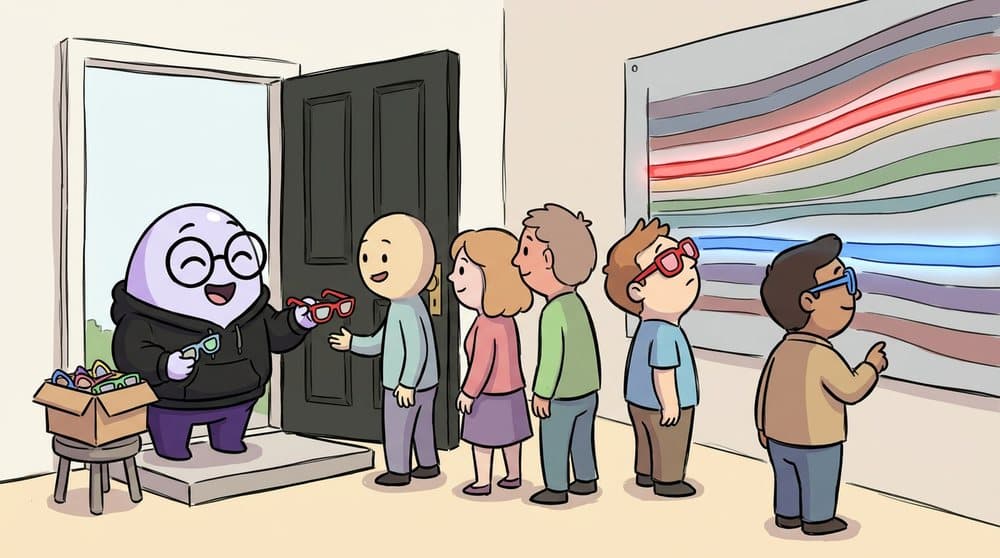
Tinted glasses at the door
Imagine the same big wall chart, but each visitor gets a pair of tinted glasses at the door. Through the North glasses you only see North rows. The chart never changes. The glasses, or roles, decide what each person sees.
Watch it happen
Role 'North' filters the Sales table
1/5The Sales table has rows from every region.
The big ideas
What you need to know
Roles hold DAX filters
In Desktop, Modeling > Manage roles. Each role has a DAX filter that returns TRUE for rows the user may see.
Filters flow through relationships
Filter a small dimension, like Region, and the filter flows to the fact table along the relationship.
Members added in the Service
After publishing, open the semantic model's Security page and add users or groups to each role.
Only Viewers are filtered
RLS applies to people with Viewer access, app users and people the report is shared with. Admins, Members and Contributors see everything.
How it works
Setting up static RLS
- 1
Create roles
In Desktop, create roles North, South, East and West, each filtering the Region table.
- 2
Test with View as
Use Modeling > View as and pick a role to check the numbers change.
- 3
Publish
Publish the model. Roles travel with it, but members do not.
- 4
Assign members
In the Service, semantic model > Security, add the right group to each role.
- 5
Test as a user
Use Test as role in the Service, or ask a Viewer to confirm what they see.
See it in code
Walk through the code
1-- Role: North (table: Region)2[Region] = "North"3 4-- Role: South (table: Region)5[Region] = "South"6 7-- Role: Large Customers (table: Customer)8[Segment] = "Enterprise" && [Country] = "India"1/3Only Region rows equal to North pass. Related Sales rows are filtered through the relationship.
Each role's filter is a DAX expression that must return TRUE or FALSE for each row of the table it sits on.
Save yourself the pain
Common mistakes
Oops
Testing RLS while you are a workspace Admin and wondering why you see all rows.
Do this instead
Editors bypass RLS. Use View as in Desktop or Test as role in the Service.
Oops
Publishing roles and forgetting to add anyone to them.
Do this instead
A Viewer who is in no role sees no data at all. Assign groups to roles in the Service after every new model.
Oops
Thinking RLS hides whole pages or visuals.
Do this instead
RLS filters rows of data. To hide columns or tables, look at object-level security, set with external tools.
Your mission
Four regions, four views
Quick check
Priya is a Member of the workspace and is also added to the RLS role 'South'. What does she see?
Go deeper
- 1Create a role that filters a Region table, like [Region] = "South".
- 2Test it with View as in Desktop.
- 3Assign a test user to the role in the Service and check what they see.
More topics at this stop
 Dynamic RLS with USERPRINCIPALNAME
 Sensitivity Labels and Governance
 Performance Analyzer
 Reducing Data Model Size
 DAX Studio Basics
 Incremental Refresh
 Deployment Pipelines
 Microsoft Fabric Overview

Stuck on this topic? Ask an Insider
Get 1:1 guidance from people who've walked this exact path — on the InsideEdge app.
