In short
A relationship is how Power BI knows that "Snacks" on a slicer should affect the Sales table. Get its cardinality wrong and totals quietly double or go blank.
Relationships connect tables through key columns. Cardinality can be one-to-many, one-to-one or many-to-many, and one-to-many from dimension to fact is the standard choice.
Think of it like this
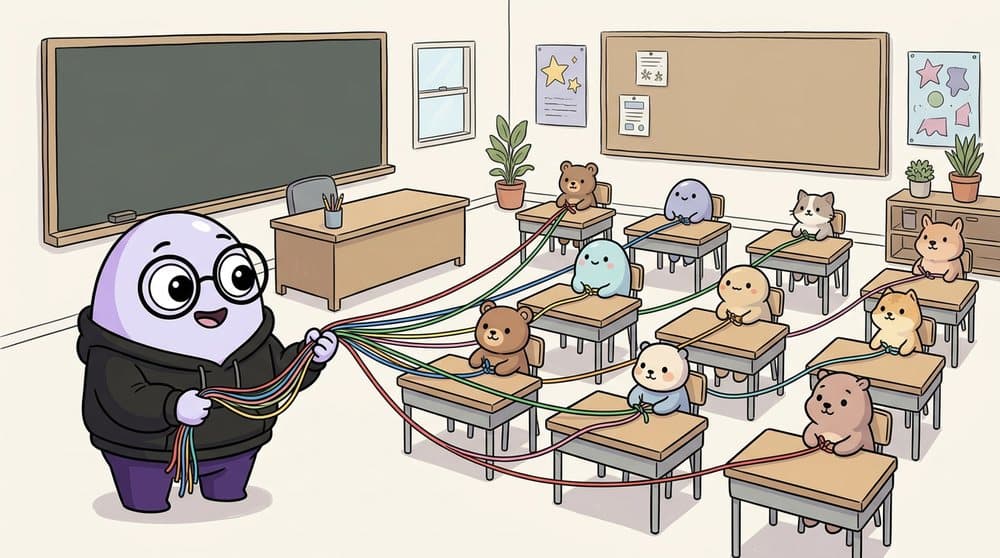
Class teacher and students
One class teacher has many students, and each student has exactly one class teacher. That's one-to-many. If you look up a student's teacher you get one name. If you look up a teacher's students you get a list. Dimensions are the teacher, fact rows are the students.
Watch it happen
Cardinality options
One-to-many (1:*)
- Key unique on the one side
- Product to Sales, Date to Sales
- The standard choice
- Filters flow one to many
Many-to-many (*:*)
- Neither side is unique
- Targets by category vs Product
- Use only when needed
- Totals can surprise you
Aim for one-to-many from a dimension with a unique key to the fact. One-to-one is rare and usually means the tables should be merged.
The big ideas
What you need to know
Unique on the one side
Power BI can only make a one-to-many if the dimension column has no duplicates.
Match data types
Both columns should have the same type. Text "101" and number 101 won't match.
The blank row
Fact keys with no match in the dimension show up under a (Blank) member in visuals.
Drag in Model view
Drag the fact key onto the dimension key, then check the cardinality and direction Power BI picked.
See it in code
Walk through the code
1Duplicate Product Keys =2COUNTROWS ( 'Product' ) - DISTINCTCOUNT ( 'Product'[ProductKey] )3 4Orphan Sales Rows =5COUNTROWS (6 FILTER ( Sales, ISBLANK ( RELATED ( 'Product'[ProductKey] ) ) )7)1/2Total rows minus distinct keys. Anything above 0 means duplicate keys, which block a one-to-many relationship.
Two health-check measures. Both should be 0 in a clean model.
Save yourself the pain
Common mistakes
Oops
Accepting a many-to-many that Power BI suggested because the dimension had duplicate keys.
Do this instead
Fix the duplicates in Power Query so the relationship becomes one-to-many.
Oops
Ignoring a (Blank) row in a visual.
Do this instead
It means fact keys don't match the dimension. Find them with a check like Orphan Sales Rows and fix the source.
Your mission
Audit your relationships
Quick check
Power BI won't let you set Product to Sales as one-to-many. What's the most likely reason?
Go deeper
- 1Create relationships manually instead of relying on autodetect.
- 2Check the key column on the 'one' side has no duplicates or blanks.
- 3Avoid many-to-many relationships unless you understand why you need them.
More topics at this stop
 Fact Tables and Dimension Tables
 Star Schema in Power BI
 Cross-Filter Direction (Single vs Both)
 Active vs Inactive Relationships
 Many-to-Many Relationships
 Star Schema vs Snowflake Schema
 Role-Playing Dimensions
 Hiding Fields and Organizing the Model

Stuck on this topic? Ask an Insider
Get 1:1 guidance from people who've walked this exact path — on the InsideEdge app.
