In short
Git, npm, Node and almost every web tool are run by typing commands. Ten basic commands are enough to stop the terminal feeling scary, and you'll use them every single day.
The command line lets you move between folders, create files and run tools like Git, npm and Node by typing commands instead of clicking.
Think of it like this
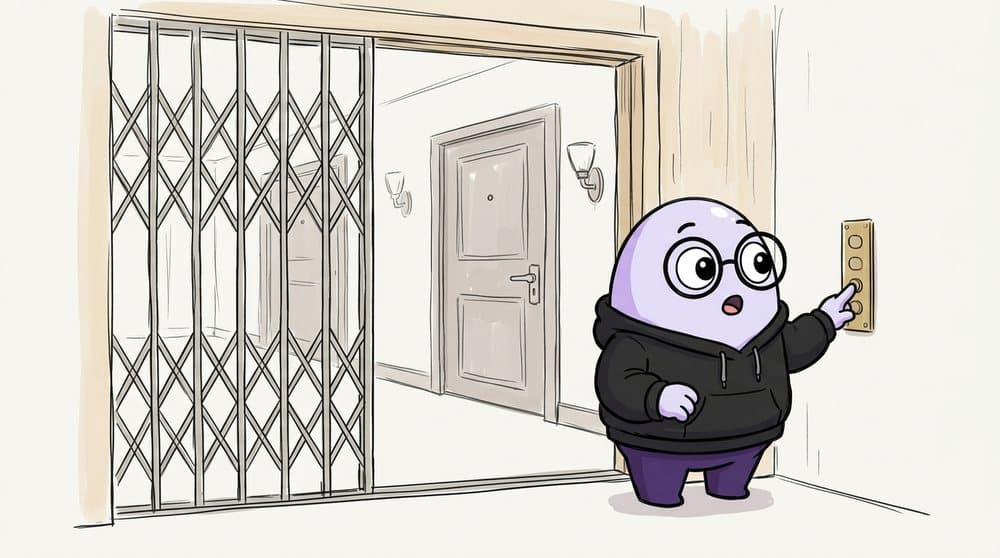
Moving through a building by directions
Instead of walking around looking at doors, you tell a lift operator exactly where to go: 'Third floor, room 304, open the cupboard.' The terminal works the same way. You're always standing in some folder, and you give short, exact instructions to move, look around and create things.
Watch it happen
Moving around with cd
1/5A new terminal usually starts in your home folder. pwd prints where you are.
The big ideas
What you need to know
You're always somewhere
pwd shows your current folder. ls lists what's inside (on Windows Command Prompt it's dir; PowerShell accepts ls).
cd moves you
cd folder goes in, cd .. goes up one level, cd ~ goes home. Press Tab to auto-complete long names.
Create things
mkdir makes a folder. touch file.txt makes an empty file on Mac and Linux; in PowerShell use ni file.txt.
Arrow keys save typing
Press Up to repeat earlier commands. Ctrl+C stops a running command, like a dev server.
See it in code
Walk through the code
1pwd # where am I?2cd ~/projects # go to the projects folder3mkdir my-site # make a new folder4cd my-site # step into it5touch index.html # create an empty file6ls # list what's here7code . # open this folder in VS Code8cd .. # go back up one level1/4Check where you are, then move into projects.
Works in macOS Terminal, Linux and Git Bash on Windows. Text after # is a comment and is ignored.
Save yourself the pain
Common mistakes
Oops
Running npm install or git init without checking which folder you're in.
Do this instead
Run pwd first. Running commands in the wrong folder creates files in odd places, like your home folder.
Oops
Using folder names with spaces, like 'My Project'.
Do this instead
Use my-project. Spaces need quotes in every command and cause small, annoying errors.
Your mission
No-mouse project setup
Quick check
You're in ~/projects/my-site/css. Where does cd .. take you?
Go deeper
- 1Practise pwd, ls (or dir), cd, mkdir and touch until you can create a project folder without the mouse.
- 2Open the terminal inside VS Code and run all commands from there.
- 3Learn to read an error like 'command not found' and check whether the tool is installed.
Also part of these roadmaps
More topics at this stop
 Setting Up VS Code
 Browser DevTools
 Reading Documentation
 Debugging Basics
 Using AI Coding Assistants Wisely

Stuck on this topic? Ask an Insider
Get 1:1 guidance from people who've walked this exact path — on the InsideEdge app.
