
Creating an AWS Account Safely
Part of the AWS Roadmap
In short
Your AWS account is linked to your card, and its first login, the root user, can do absolutely anything. Ten careful minutes at sign-up save you from the two classic beginner disasters: a hacked account and a surprise bill.
Creating an account needs an email address, a phone number and a payment method. The first steps after signing up should be securing the root user with MFA, creating an admin identity for daily use and setting a budget alert.
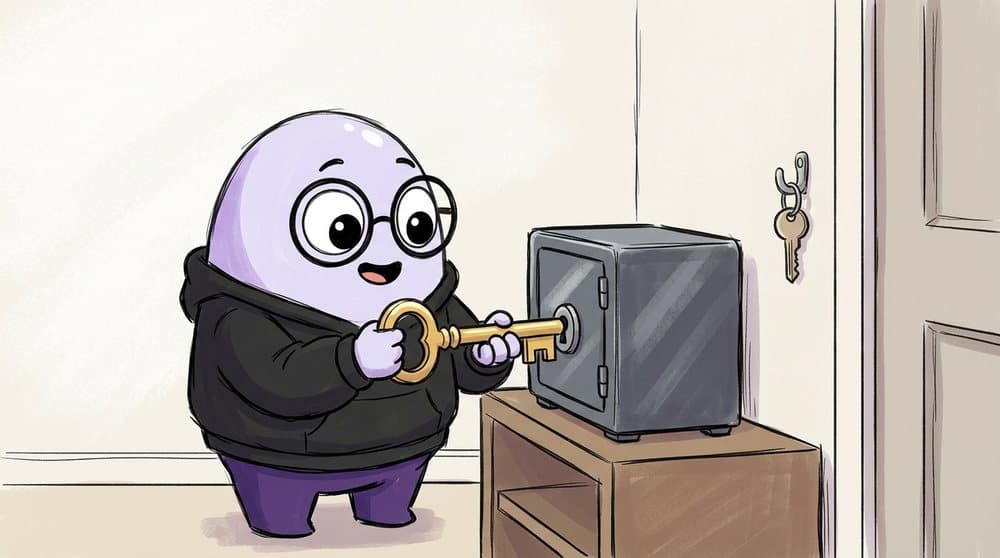
Think of it like this
Opening a bank locker
When you rent a bank locker, you get a master key that opens everything. You don't carry it daily. You lock it at home, set up a signature check, and ask the bank to SMS you on every visit. The AWS root user is that master key.
Watch it happen
Sign-up to safe in five stops
1/5Use an email you will keep for years, ideally a shared team address like aws-root@yourcompany.in, not a personal one. Choose the free or paid plan.
The big ideas
What you need to know
Durable root email
Losing access to the root email can lock you out of the account. Use an address that survives job changes and has its own MFA.
Root stays locked
Never create access keys for root. Sign in as root only for the few tasks that truly need it.
Alternate contacts
Add billing, operations and security contacts so AWS warnings reach the right person even if one inbox is ignored.
Account alias
An alias gives your sign-in page a friendly name instead of a 12-digit number, which makes phishing pages easier to spot.
See it in code
Walk through the code
1# Run these as your new admin identity, not as root2aws iam create-account-alias --account-alias riya-learning-lab3 4aws account put-alternate-contact \5 --alternate-contact-type SECURITY \6 --name "Riya Sharma" \7 --title "Owner" \8 --email-address security@example.in \9 --phone-number "+91-9800000000"10 11aws iam get-account-summary --query "SummaryMap.AccountMFAEnabled"1/3Your sign-in URL becomes riya-learning-lab.signin.aws.amazon.com/console.
After the console steps, set an alias, add a security contact and confirm root MFA is on (1 means enabled).
Save yourself the pain
Common mistakes
Oops
Using the root user every day because it 'just works'.
Do this instead
Use an admin identity for daily work. Root is for rare account-level tasks like closing the account or changing the root email.
Oops
Signing up with a college email that expires after graduation.
Do this instead
Use a long-lived address you control, protected by its own MFA.
Oops
Skipping the budget alert because you plan to stay in the free plan.
Do this instead
Set one anyway. It costs nothing and catches mistakes like a forgotten NAT gateway.
Your mission
Safe sign-up checklist
Quick check
Which of these should you do with the root user?
Go deeper
- 1Use an email address you will keep for years and a strong, unique root password stored in a password manager.
- 2Enable MFA on the root user immediately after sign-up.
- 3Write a personal checklist of security steps to complete before launching any resource.
More topics at this stop
 AWS Free Tier and Its Limits
 Setting Up AWS Budgets & Billing Alerts
 AWS Management Console, CLI & SDKs
 Installing & Configuring the AWS CLI
 Working With the AWS CLI
 Python & Boto3 for AWS Automation
 AWS Pricing Models & Pricing Calculator

Stuck on this topic? Ask an Insider
Get 1:1 guidance from people who've walked this exact path — on the InsideEdge app.
