In short
Before you write a line of Java, you need two things: a JDK to compile and run code, and a good editor. Getting this right once saves you hours of confusing errors later.
Install a recent LTS JDK (such as Java 21) from a distribution like Eclipse Temurin or Oracle, plus an IDE. IntelliJ IDEA Community Edition is free and widely used.
Think of it like this
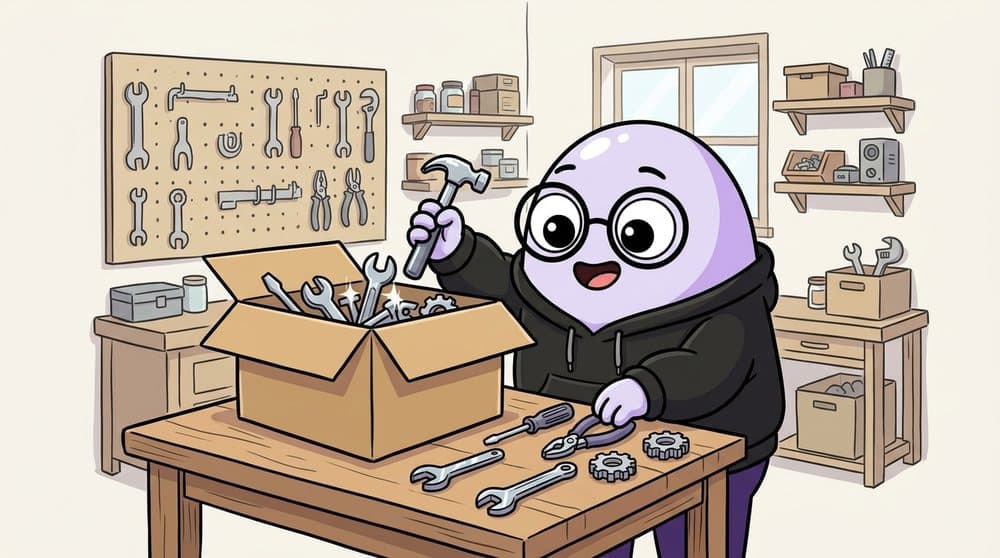
Setting up a carpenter's workshop
A carpenter needs the machines (saw, drill, lathe) and a good workbench to use them on. The JDK is the machinery that cuts and joins your code. IntelliJ IDEA is the workbench with clamps, rulers and labelled drawers that makes the work quick and neat.
The big ideas
What you need to know
Pick an LTS JDK
LTS (long-term support) versions like 17 and 21 get updates for years. Companies standardise on them.
Distribution choice
Eclipse Temurin, Oracle JDK, Amazon Corretto and Microsoft Build of OpenJDK are all built from OpenJDK. Temurin is a safe free default.
JAVA_HOME and PATH
Installers usually set these. If java is not found in the terminal, add the JDK's bin folder to PATH.
The IDE helps you learn
IntelliJ underlines errors as you type, suggests fixes with Alt+Enter and auto-completes method names.
How it works
From zero to a running project
- 1
Download a JDK
Get an LTS build such as Eclipse Temurin 21 from adoptium.net, or let IntelliJ download one for you.
- 2
Install and verify
Run the installer, then open a new terminal and run java -version and javac -version.
- 3
Install IntelliJ IDEA
The free Community Edition is enough for everything in this roadmap.
- 4
Create a project
New Project, pick Java, choose the JDK 21 you installed, and tick "Add sample code".
- 5
Run it
Click the green play arrow next to main. The output appears in the Run panel at the bottom.
See it in code
Walk through the code
1# macOS with Homebrew2brew install --cask temurin@213 4# Ubuntu / Debian5sudo apt install openjdk-21-jdk6 7# Windows with winget8winget install EclipseAdoptium.Temurin.21.JDK9 10# Verify in a NEW terminal11java -version12javac -version1/4On a Mac, Homebrew installs Temurin 21 in one line.
One command per operating system. Open a fresh terminal afterwards so PATH changes are picked up.
Save yourself the pain
Common mistakes
Oops
Testing java -version in the same terminal window that was open before the install.
Do this instead
Close it and open a new one. Old windows keep the old PATH.
Oops
Having three different JDKs installed and not knowing which one the project uses.
Do this instead
In IntelliJ, check File > Project Structure > SDK, and make it match the version you expect.
Your mission
Set up your workshop
Quick check
You run javac -version and get "command not found", but java -version works. What is the most likely cause?
Go deeper
- 1Install an LTS JDK and run java -version and javac -version in a terminal.
- 2Install IntelliJ IDEA Community Edition and create a new Java project.
- 3Compile and run one file from the terminal too, so you know what the IDE does for you.
More topics at this stop
 What Is Java and Where It Is Used
 JDK vs JRE vs JVM
 Your First Program & main()
 Compiling and Running from the Terminal
 How Java Runs (Bytecode & JIT)
 Comments, Naming & Code Style

Stuck on this topic? Ask an Insider
Get 1:1 guidance from people who've walked this exact path — on the InsideEdge app.
