In short
Online playgrounds are fine for a first taste, but real projects live on your own machine. Ten minutes of setup now gives you a proper editor, a terminal and a Python you control.
Install Python 3 from python.org (or your operating system's package manager) and VS Code with the official Python extension, so you can write, run and debug code on your own machine.
Think of it like this
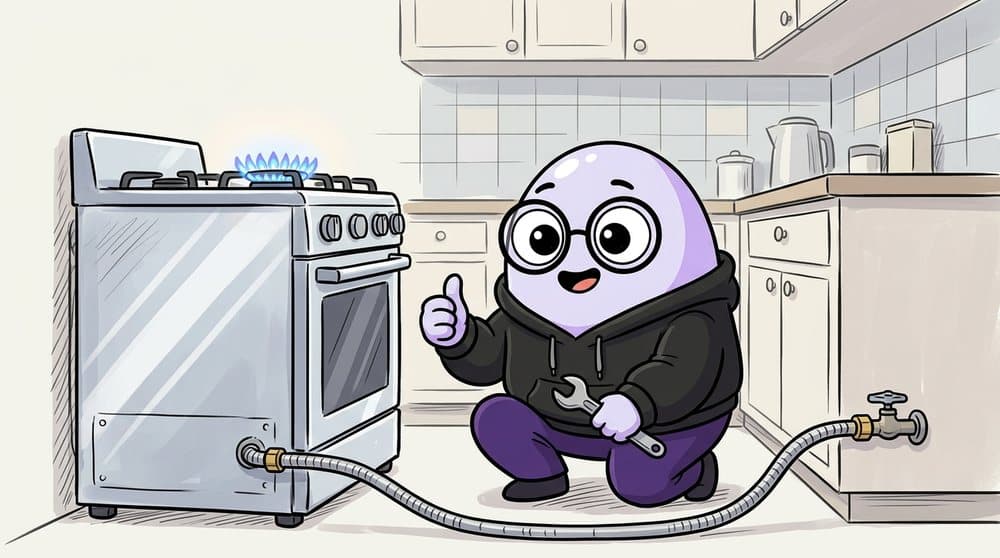
Setting up your own kitchen
Python is the stove: it actually cooks (runs) your code. VS Code is the countertop with good lighting and sharp knives, where you prepare everything comfortably. The Python extension is the gas pipe that connects the two, so pressing Run on the counter lights the right burner.
Watch it happen
From download to first run
1/5Download the latest stable Python 3 from python.org. On macOS you can also use Homebrew, and on Linux it is often already installed.
The big ideas
What you need to know
PATH tells the terminal where Python lives
When you type python, the terminal searches the folders listed in PATH. If Python's folder isn't there, you get "command not found" even though it is installed.
python vs python3 vs py
On macOS and Linux, use python3. On Windows, python or the py launcher both work. They all mean "start the Python 3 interpreter".
The Python extension adds the smarts
It gives VS Code autocomplete, error underlines, a Run button, a debugger and the interpreter picker. Without it, VS Code is just a text editor.
pip comes bundled
pip installs extra packages. Run it as python -m pip install <name> so it always matches the Python you are using.
See it in code
Walk through the code
1# Windows (Command Prompt or PowerShell)2python --version3py --version4 5# macOS or Linux6python3 --version7 8# Both: check pip and VS Code9python3 -m pip --version10code --version1/4On Windows, either command should print something like Python 3.12.x or newer.
Run these in a fresh terminal after installing. Each should print a version number instead of an error.
Save yourself the pain
Common mistakes
Oops
Forgetting to tick "Add python.exe to PATH" on Windows, then fighting "python is not recognized" errors.
Do this instead
Re-run the installer, choose Modify, and enable the PATH option, or reinstall with the box ticked. Then open a brand-new terminal.
Oops
Typing python --version inside the Python prompt (>>>).
Do this instead
That command belongs in the system terminal. If you see >>>, type exit() first, then run it.
Oops
Installing three different Pythons and not knowing which VS Code uses.
Do this instead
Keep one current Python 3, and check the interpreter shown in the VS Code status bar matches it.
Your mission
Get a working setup
Quick check
You installed Python on Windows but the terminal says "python is not recognized". What is the most likely cause?
Go deeper
- 1Install the latest stable Python 3 release and tick 'Add python.exe to PATH' on Windows.
- 2Run python --version (or python3 --version on macOS and Linux) in a terminal to confirm it works.
- 3Install VS Code with the Python extension and select your Python interpreter from the status bar.
More topics at this stop
 What Is Python
 Running Scripts & the Python REPL
 Command Line Basics
 Your First Program with print()
 Comments & PEP 8 Style
 How Python Runs Your Code
 Reading Error Messages & Tracebacks

Stuck on this topic? Ask an Insider
Get 1:1 guidance from people who've walked this exact path — on the InsideEdge app.
