
Reading & Writing Files (java.nio.file)
Part of the Java Roadmap
In short
Data disappears when your program stops unless you save it. With java.nio.file, reading or writing a whole file is often a single line of code.
The java.nio.file API (Files and Path) makes file work simple, with methods like Files.readAllLines, Files.writeString and Files.lines for streaming large files.
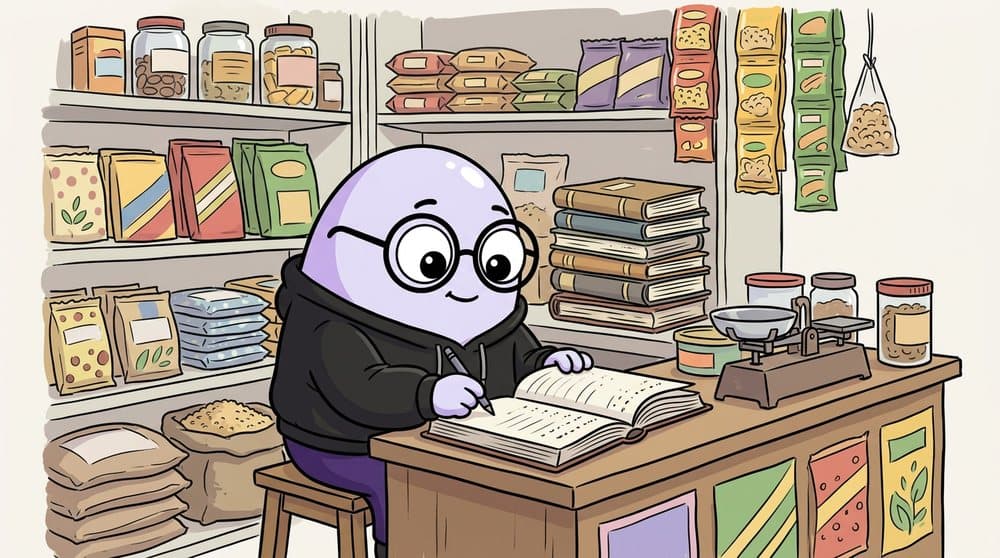
Think of it like this
The shopkeeper's khata
A kirana shop owner in Lucknow writes every sale in a khata notebook. Path is the shelf label telling you which notebook. Files is the shopkeeper's hand: it can read the whole book, add a new line at the bottom, or start a fresh page.
Watch it happen
Reading a whole file vs streaming it
Files.readAllLines
- Loads every line into a List<String>
- Simple to use and loop over
- Fine for small and medium files
Files.lines
- Gives a lazy Stream<String>
- Reads lines one at a time as needed
- Right for large log files; close it with try-with-resources
Start with readAllLines. Switch to Files.lines when a file could be too big to hold in memory.
The big ideas
What you need to know
Path is a location
Path.of("data", "expenses.txt") points to a file. It does not open or create anything by itself.
Write in one call
Files.writeString(path, text) creates or overwrites. Add StandardOpenOption.APPEND to add to the end instead.
Folders and checks
Files.createDirectories, Files.exists, Files.delete and Files.copy cover most everyday file tasks.
UTF-8 by default
These Files methods use UTF-8 unless you say otherwise, so text like ₹ and Hindi names is saved correctly.
See it in code
Walk through the code
1import java.io.IOException;2import java.nio.file.Files;3import java.nio.file.Path;4import java.nio.file.StandardOpenOption;5import java.util.List;6import java.util.stream.Stream;7 8public class ExpenseLog {9 public static void main(String[] args) throws IOException {10 Path dir = Path.of("data");11 Files.createDirectories(dir);12 Path log = dir.resolve("expenses.txt");13 14 Files.writeString(log, "Chai,20" + System.lineSeparator());15 Files.writeString(log, "Metro card,200" + System.lineSeparator(),16 StandardOpenOption.APPEND);17 18 List<String> lines = Files.readAllLines(log);19 System.out.println(lines.size() + " expenses: " + lines);20 21 try (Stream<String> stream = Files.lines(log)) {22 long big = stream.filter(l -> Integer.parseInt(l.split(",")[1]) > 100).count();23 System.out.println("Expenses above ₹100: " + big);24 }25 }26}1/4Build a path, make sure the data folder exists, then resolve the file name inside it.
A tiny expense log. The first write creates or overwrites the file; the second one appends. You will meet streams properly in the next phase.
Save yourself the pain
Common mistakes
Oops
Calling Files.writeString twice and expecting both lines to be in the file.
Do this instead
Without StandardOpenOption.APPEND, each call overwrites the file. Add APPEND for the later writes.
Oops
Using Files.lines(path).forEach(...) without closing it.
Do this instead
Wrap it: try (Stream<String> s = Files.lines(path)) { ... } so the file handle is released.
Oops
Hardcoding paths like C:\Users\Riya\data.txt.
Do this instead
Use relative paths with Path.of("data", "file.txt") so the code works on Windows, Mac and Linux.
Your mission
Daily diary
Quick check
What does Files.writeString(path, "hi") do if the file already has 50 lines?
Go deeper
- 1Read a text file into a List<String> and count its lines.
- 2Write a list of records to a CSV file with Files.write.
- 3Use BufferedReader for large files instead of reading everything at once.
More topics at this stop
 Checked vs Unchecked Exceptions
 Try-Catch-Finally
 Try-with-Resources
 throw vs throws
 Custom Exceptions
 Working with CSV Files
 Serialization Basics

Stuck on this topic? Ask an Insider
Get 1:1 guidance from people who've walked this exact path — on the InsideEdge app.
